
If you are struggling with a slow or heavy drawing, this guide will show you exactly how to reduce DWG file size using a proven AutoCAD cleanup workflow.
Large files can cause performance issues, crashes, and delays in collaboration. Below, you will find a step-by-step method to optimize your drawing and improve performance.
Issues Caused by Large CAD File Sizes
Large DWG files do not only affect storage. They can seriously impact your workflow and productivity.
- Slow opening and saving times
- Lag when zooming, panning, or editing
- Increased risk of crashes and file corruption
- Difficult file sharing via email or cloud platforms
- Poor performance on low-end PCs
For this reason, learning how to reduce DWG file size is essential for efficient CAD work.
Why DWG Files Get Too Large
Before you reduce DWG file size, it is important to understand why drawings become heavy in the first place.
- Unused layers, blocks, and styles
- Accumulated RegApps from external files
- Corrupted drawing data
- Complex or dense hatch patterns
- Unused Xrefs and images
- Proxy objects from other CAD software
Step-by-Step Workflow to Reduce DWG File Size
The most effective way to reduce DWG file size is to follow a structured cleanup workflow:
- -PURGE registered applications
- PURGE all unused elements
- AUDIT the drawing
- WBLOCK the drawing into a new clean file

Step 1: Remove RegApps
RegApps are hidden records that can significantly increase DWG file size, especially in files received from external sources.
-PURGEThen type:
RThis removes registered applications from the drawing database.
Why this matters: Removing RegApps is one of the most important steps to reduce DWG file size.
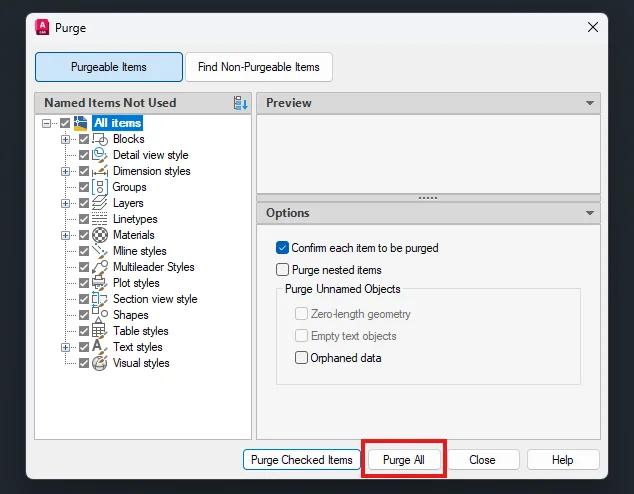
Step 2: Purge All Unused Elements
Next, remove all unused objects:
PURGEClick Purge All and repeat until nothing remains.
This will remove unused:
- Layers
- Blocks
- Linetypes
- Text styles
- Dimension styles
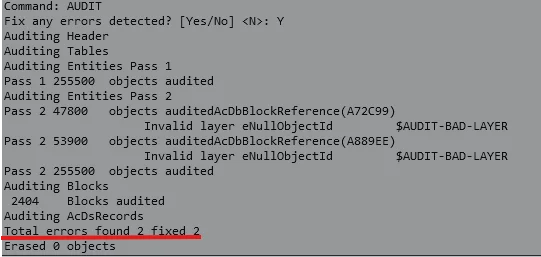
Step 3: Run Audit
To fix errors in the drawing database:
AUDITType:
YThis step repairs corruption and helps further reduce DWG file size.
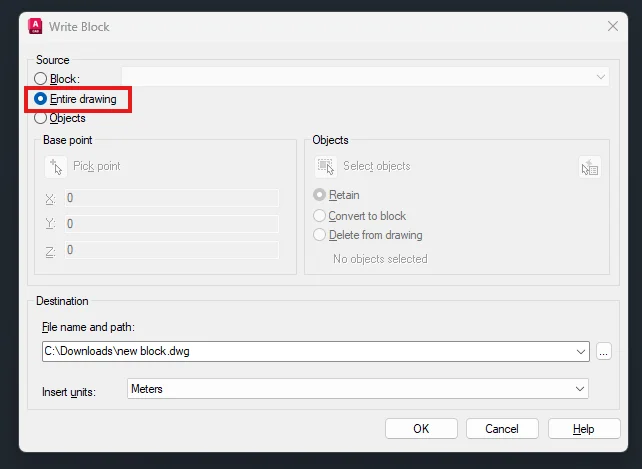
Step 4: Create a Clean DWG with WBLOCK
WBLOCK creates a fresh version of your drawing without hidden data.
WBLOCK- Select Entire Drawing
- Save as a new file
This step is critical for fully optimizing and reducing DWG file size.
Additional Ways to Reduce DWG File Size
1. Reduce Heavy Hatch Patterns
Dense hatch patterns can significantly increase file size.
- Use simpler hatch types
- Increase hatch scale
- Remove unnecessary hatches
2. Remove Unused Xrefs and Images
XREFDetach unused references.
IMAGERemove unused images.
3. Remove Duplicate Geometry
OVERKILLThis command removes overlapping objects and duplicate lines.
4. Convert Proxy Objects
-EXPORTTOAUTOCADThis converts custom objects into standard AutoCAD entities.
Quick Summary
To quickly reduce DWG file size:
- -PURGE → RegApps
- PURGE → Purge All
- AUDIT → Fix errors
- WBLOCK → New file
This workflow can reduce file size dramatically and improve performance.
Conclusion
Knowing how to reduce DWG file size is essential for efficient AutoCAD workflows. By following the correct cleanup process and optimizing your drawing, you can significantly improve performance and reduce file weight.
FAQ
Why is my DWG file so large?
Because of unused data, RegApps, hatches, proxy objects, or corrupted elements.
What is the fastest way to reduce DWG file size?
Use the full workflow: -PURGE, PURGE, AUDIT, and WBLOCK.
Does Purge delete important data?
No, it only removes unused elements.
Can hatch patterns increase DWG file size?
Yes, dense hatches are a common reason for large files.